
Stop Letting AI Write Your Code (And Start Actually Learning Instead)
Why “Accept All” Is Making You a Worse Developer—and How to Use AI Without Losing Your Brain?

Look, I’m going to be honest with you.
If you’re using Cursor or any AI code editor, you’re probably doing it wrong. And I say this as someone who uses it every single day.
You know the drill: paste a prompt, hit Enter, watch the magic happen, smash that “Accept All” button without reading a single line. Boom. Feature shipped. You’re a 10x developer now, right?
Wrong.
Here’s the uncomfortable truth:
you’re slowly turning your brain into mush.
But here’s the good news—it doesn’t have to be this way. You can use AI to actually become a better developer, not just a faster copy-paster. And that’s exactly what this guide is about.
Problem #1: Your Brain is Getting Lazy (And It’s Not Your Fault)
Here’s what nobody tells you about “vibe coding.”
When you let AI handle everything, you’re not just saving time. You’re literally rewiring your brain to be worse at coding.
I know that sounds dramatic, but here’s the neuroscience version: when you don’t actively solve problems, your brain stops building neural pathways. It’s like a muscle. Stop using it, and it weakens.
You lose three critical abilities:
1. Critical Thinking — You stop analyzing problems deeply. You just throw prompts at the wall and hope something sticks.
2. Patience — You expect instant solutions. That 10-minute debugging session? Unbearable now.
3. Focus — Complex tasks become impossible. Your attention span shrinks to the size of a TikTok video.
And then? Burnout. You get fed up with coding entirely.
The fix is simple (but not easy): learn first, implement after.
Yes, it takes a few extra minutes. But here’s what you gain:
You know exactly what you’re building
When bugs appear (and they will), you know where to look
You’re actually learning, not just shipping features
Think of it this way: would you rather be a developer who can build anything, or someone who can only build what AI tells them to build?
How to Actually Learn With AI (Ask Mode)
Here’s where things get interesting.
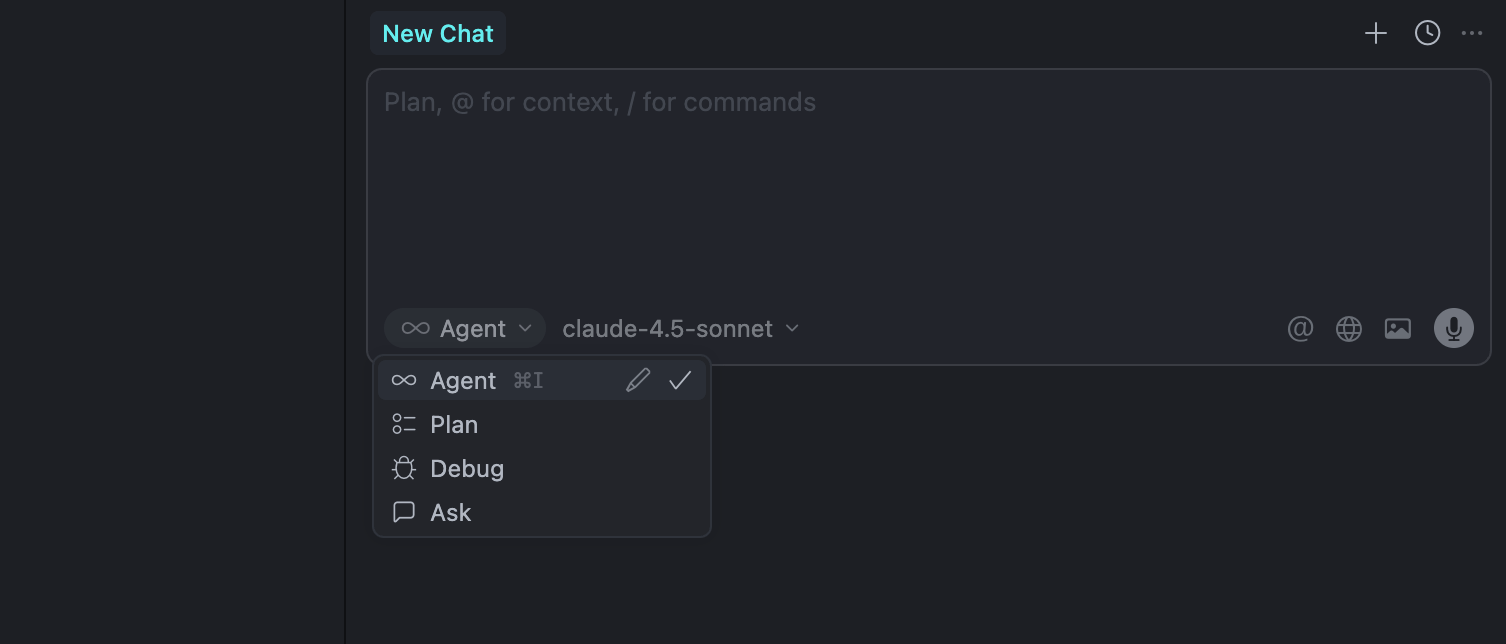
Any AI code editor can be your personal tutor—if you use it right. Cursor has a feature called “Ask Mode” that’s criminally underused.
Instead of applying changes to your code, it just... answers your questions. Like a senior dev who has infinite patience and never gets annoyed when you ask “why” for the 47th time.
Let me give you real examples:
Example 1: You’re building a Medium clone. Each article needs two versions—a draft and a published one. Readers see the published version; you edit the draft. Once you’re done, you publish the changes.
Instead of asking Cursor to build this, ask: “How should I architect a dual-version article system? What are the tradeoffs of different approaches?”
Example 2: Your codebase uses Kafka, Clickhouse, Redis, session-based auth, Postgres, and Docker. Your manager says, “Understand these before touching the code.”
Instead of Googling each one, ask Cursor: “Explain how Kafka works in our codebase. Why did we choose it over alternatives?”
Example 3: You see this in your codebase: “Don’t use ‘return await’ in async functions.”
Your brain: “Why tho?”
Ask Mode: Perfect use case.
Here’s my workflow:
Before building a feature, ask how it should work
Keep asking follow-up questions until it clicks
Ask about alternative approaches and why they’re bad
Understand the tradeoffs
Then—and only then—do you start coding.
This isn’t slower. It’s smarter. You’re building knowledge, not just features.
Planning Like a Senior Engineer (Plan Mode)
Let’s get something straight: writing code is the easy part.
Programming languages are just tools. The hard part—the part that actually makes you valuable—is solving problems and preventing future ones.
How? Planning.
A great developer isn’t someone who codes for 12 hours straight. It’s someone who thinks for 2 hours and codes for 30 minutes, building systems that won’t explode in production.
Enter Plan Mode.
When you’re building something that touches multiple files (which is basically everything), you tell Cursor what you want to build. It then creates a .md file with every single task it’s about to execute.
Here’s what makes this powerful:
You see the complete strategy before a single line changes
You catch issues before they happen
You understand the “why” behind each change
You can switch to Ask Mode to dig deeper into any step
Once you’ve reviewed and approved the plan, you click “Build” and watch it execute.
The .md file auto-deletes after. Clean and simple.
Pro tip: Don’t skip the review. This is where you learn system design, not from a textbook.
Debugging Without the Pain (Debug Mode)
Ah, debugging. The thing that makes developers question their career choices at 2 AM.
You’ve been there: stuck on a bug for three days, only to discover it’s a missing semicolon or a typo in a variable name. Soul-crushing doesn’t even begin to describe it.
Debug Mode is designed specifically for this nightmare.
Here’s how it works:
Paste the error from your terminal (or describe the bug)
Cursor identifies the root cause
It adds logs to your codebase to trace the issue
It reads those logs, pinpoints the problem
It fixes it
What would take you days now takes minutes.
I’m not exaggerating. This feature alone has saved me dozens of hours.
When to Actually Use Agent Mode
Agent Mode is the “just do it” button. You prompt, it codes, and changes apply directly.
Most people live here. That’s the problem.
Here’s when Agent Mode is actually perfect:
Adding/removing logs across multiple files
Checking for unused functions
Adding try-catch blocks everywhere
Writing boilerplate code
Simple, repetitive changes
For everything else? Stick with Ask, Plan, and Debug. Those modes force you to think, understand, and grow.
Agent Mode is for automation. The others are for education.
The Secret Weapon: Cursor Rules
Most developers ignore this feature. Big mistake.
Cursor Rules tell the AI what standards to follow before answering or making changes.
Think of them as your team’s coding constitution.
Example rules:
Never use “return await” in async functions
Always wrap async functions in try-catch
Move private functions to a separate
{file}-private.service.tsfiles
Cursor has three levels of rules:
1. Project Rules (Codebase Level) Stored in .cursor/rules folder. Version-controlled. Team-wide. You can push this to GitHub so everyone benefits.
2. User Rules (Account/Global Level) Found in Settings → General → Rules for AI. Apply to every project you work on.
3. Team Rules For Team/Enterprise plans. Manage rules across your entire organization.
Set these up once, benefit forever.
Choosing the Right AI Model
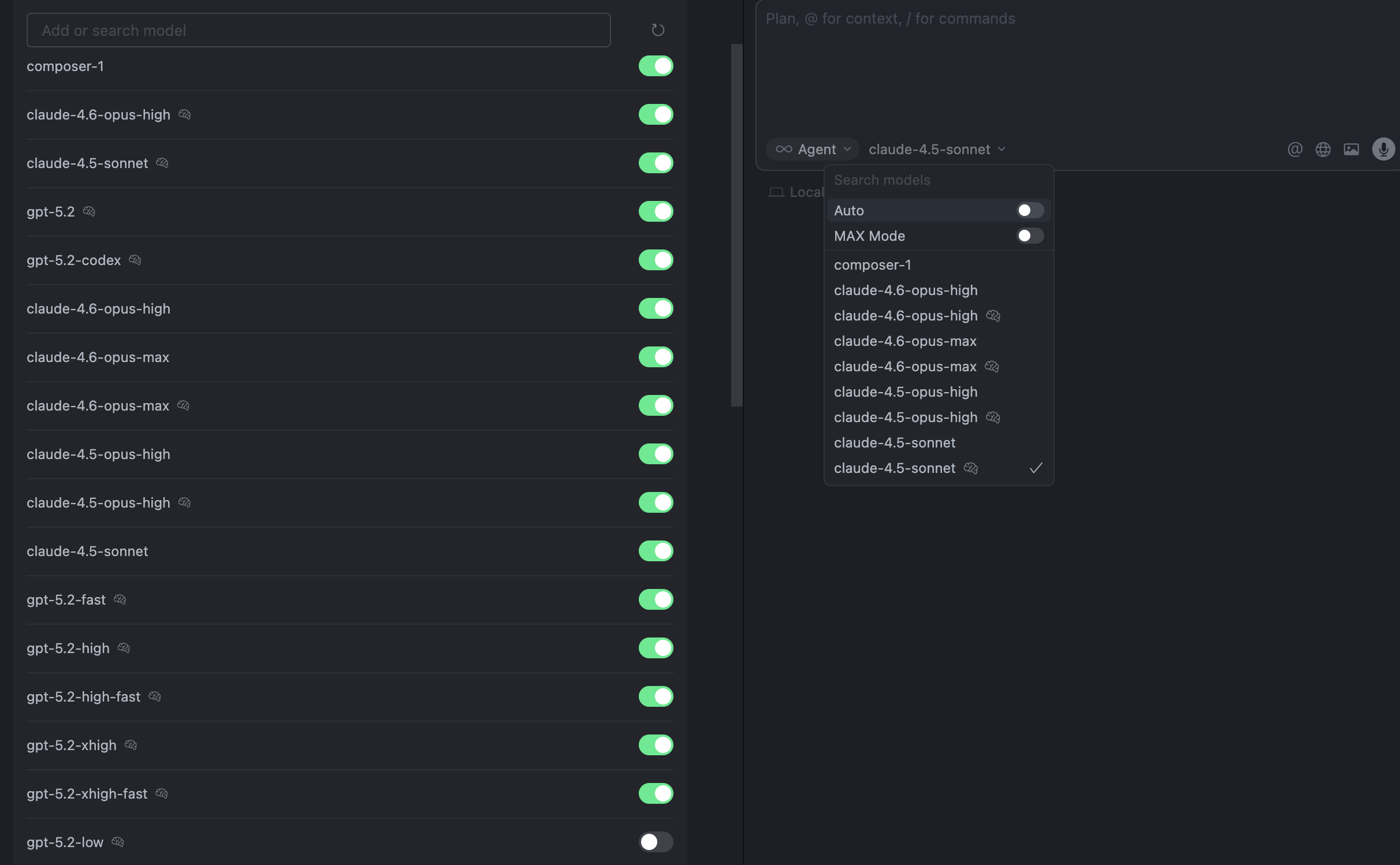
When it comes to coding, there are only two models that matter:
Claude Opus 4.6 (or latest version)
Claude Opus 4.5
Claude Sonnet 4.5
Always prefer Claude models. They’re very powerful.
Here’s my strategy:
Complex tasks, refactoring, architecture decisions → Claude Opus 4.6
Simple implementations, boilerplate, quick fixes → Claude Sonnet 4.5
If you’re hitting monthly limits on Opus, this split will extend your usage significantly.
Also, you will have 3 different variations of the same model
Claude Opus 4.5 (Normal)
Claude Opus 4.5 (Thinking)
Claude Opus 4.5 (Fast + Thinking)
As you move down, the cost consumption increases. So, always prefer Normal for 80% of the tasks and Thinking for the difficult tasks.
I personally didn’t feel the need to use Fast + Thinking. But it’s up to you!
The Bottom Line
Cursor is a $29 billion tool for a reason—it’s genuinely revolutionary.
But like any powerful tool, it can either make you incredibly skilled or completely dependent.
The choice is yours:
Use Ask Mode to learn
Use Plan Mode to think strategically
Use Debug Mode to solve problems faster
Use Agent Mode sparingly
Set up Cursor Rules for consistency
Choose the right model for the task
Do this, and you won’t just ship code faster. You’ll become the developer who actually understands what they’re building.
And trust me—that’s worth way more than being able to hit “Accept All” really fast.